Tuesday, November 10, 2020

Concatenating attribute elements based on Parent Attribute

 Hi All,

This is one interesting post that I wanted to share with you all. Very rarely we get a requirement to concatenate the attribute values and group the same to appear under another attribute. Though this requirement is best handled in a database view/ table, it may not be a permanent solution for all scenarios. It may vary based on the reporting filter condition, report granularity etc., Also it my get very complicated if the concatenation needs to happen based on two attributes from different tables.

So its better handled in the reporting side if you have many such concatenations at different attribute levels and different attribute concatenation.

Today we are going to see how to handle such a requirement from through MicroStrategy reports. Here is the requirement with the following base data


So the concatenation needs to happen on Product attribute based on each Customer group and the final output should appear like below.

To achieve this you need to design couple of metrics, this unfortunately can be done only through metrics, as Derived Attributes wont support ConcatAgg function.

Step 1: Create a Derived Metric for the attribute which you want to GroupConcat. Its very important to set the aggregation parameters as mentioned below to get the desired output.


Step 2: Create the ConcatAgg Metric using the newly created derived metric. 

And you can customise the options to change the delimiter character and sort options as well. In case if you need to use custom sort order  for the concatenated attribute elements you would need to create a new attribute with custom sorting and add it in the Sort by parameter. 


That's it you are done. You just have to add the Product Concat metric alone in the report and keep the Product Attribute and Product Derived metric in the report objects.


Pros.

Main thing in this implementation is that this eliminates the dependency with the database layer if you are not handling concatenation in the database level. Since the reports may have many such combinations between different attributes where we cannot have a concat column loaded in the database.

Also any change in the logic can be derived in the report level itself.

Cons.

Since this is a metric you cant add this field in between the attributes. You may need to consider making all other attributes as metrics placed after the GroupConcat.

Saturday, September 29, 2018

Experience on my MicroStrategy Interviews being on both sides!

Writing a post after 2 long years. But not technical this time. Inspired by a couple of posts from MicroStrategy Guru of Gurus! Bryan Brandow and also coz of the interviews that I have been on both sides atleast for the past one year!


To me as far as an interview is concerned its just the first 5 minutes which is very important and how you actually set an interview in the direction which you want as an interviewee. Let me tell about an interview experience.. Basically it was an interview for 6  - 8 years of experience. Where the ask from the candidate was to be sharp in SQL skills, MicroStrategy Public Objects expertise and  good Schema objects exposure. Most of the folks hardly answered a simple Employee and Manager name scenario..

List out the Employee Names and Manager Names from the table?
List the names of employees who gets maximum salary in each department?
List out the duplicate records in a table and its count?

Employee Table
Emp ID Emp Name Manager ID Dept ID Salary
1 A 2 1 6000
2 B 3 1 7000
3 C 4 1 9000
4 D 5 2 15000
5 E 6 2 36000
6 F 1 2 5000
The moment most of the folks find it difficult to  answer simple SQL questions like above which are by standard popular interview questions in Datawarehousing and Business Intelligence industry. Many candidates barely fail to impress the technical capability of the interviewer. Yes though they might be very comfortable in MicroStrategy Schema objects or Public objects. The moment they fail to answer simple SQL questions its very hard for them to answer the questions in MicroStrategy!

Is SQL that important? 

Yes SQL is very important as far as BI Development is concerned just assume lets say if there is a business requirement given and your table is not available in the form which doesn't support report requirement. If you are not good in visualizing your report SQL it becomes very hard for you to solve the reporting requirement.

Cant it be learnt on the job? 

Yes it can be learnt on the job but, an experience over within 2 years its very important for developers to get good understanding on SQL and it becomes a bare minimum expectation to get your BI career forward. So if you ask me a question "Cant SQL be learnt on the job?" Yes it can be and it should be but make it a primary task within the first 2 years of your career. As it is very basic!

So folks make sure you get the SQL skills sharpened very early in your career. If not learn now. Right  now!

Second awareness in Datawarehousing and Business Intelligence (DWBI) concepts. Its very important for any MicroStategy developer to be at least aware of the DWBI concepts. Lets talk about my favorite interview question. 

Explain many to many relationship with an example and how would you solve it?

Many people find it very hard to explain even with a simple example.But what is actually expected in an interview is to explain this concept clearly with an example and say what would be the implications because of many to many relationships in reports and how to solve it. 


On the whole BI interviews are mainly about testing the understanding of the concepts and how you practically implement it. There could be several things you you might not have got opportunity to work with but whatever you say say it with good confidence and let the interviewer know that you have understood the stuff at least conceptually.

Hope you might be overwhelmed with lots of thoughts. Feel free to post your  comments and I will make sure to update the post if required.

Wednesday, July 13, 2016

Thresholds on Attributes now a reality from MicroStrategy 10.4!

Well well this is one of the most wanted feature out of the box for such a long time and now we have its ready available in v10.4. This is a freaky awesome feature. Now I'll smash those funky old BO developers who mocked at me back in 9.3.0 days with this feature. It took MicroStrategy such a long time to get this feature done. Never late. Thank you MicroStrategy. And here is how you do it.

This was made possible due to section made available for the microstrategy user community Idea Exchange. There are several other features available in latest releases just because an idea got posted in the exchange. I would recommend the community to post the ideas or any requirements which is not feasible to be done and it would enable MicroStrategy to work on it and get it available.

https://community.microstrategy.com/t5/Idea-Exchange/Add-support-for-thresholds-conditional-formatting-on-attribute/idc-p/301407#M5210

Just as you would apply thresholds using advanced thresholds editor and here is how you do it and see it on the reports.


Create a simple report with a few Attributes and a metric from the MicroStrategy Tutorial project and run the report. Now create a simple threshold in the report using the Advanced Thresholds Editor.


Now you should be able to see the thresholds in the report. Awesome isnt it!


Wednesday, October 14, 2015

MicroStrategy v10.0 New Feature - Derived Attributes


Hi All,

Today we are going to discuss one new feature from MicroStrategy v10.0 onwards called “DERIVED ATTRIBUTES”.

This is one functionality which I have been wanting to have desperately having worked with customers who always has requirements to Create an attribute / a conditional attributes which evaluates conditionsbetween two different tables.

Prior to v10.0 this was never possible until we have a Logical View or a Database view merging two tables in to a single one!

But now from v10.0 onwards there comes the most powerful but simple functionality called “DERIVED ATTRIBUTES”. We will see about this functionality in detail today.

First let’s see a basic scenario where we can employ this Derived Attributes. Say we have a report with the following objects.

Attributes

Year
Benefit Type

Metrics

Employee cost

Say we have a requirement like to concat the values of Year and Benefit which are totally of different attribute hierarchy and we want it to be shown as an attribute. Prior to v9.4.1 it was not possible to achieve this functionality without a logical table or in the report level with the help of a derived metric.

However this can now be achieved through the help of DERIVED ATTRIBUTE from v10.

Steps to create a Derived Attribute.

Step 1: Create a dataset with the necessary objects


Step 2: Add the dataset in the reporting services document and create a derived attribute.


Step 3: Add the derived attribute to the grid in the document and run it.That’s it!


Pros:


  • Now you can create an attribute from two different tables without having to create a logical table or a database view which is very simple and minimizes the schema design complexity.

Cons:


Bottomline: This is one feature we wanted real bad and happy to see that its possible now in MicroStrategy atleast in the document. However there are few limitations now with Derived Attributes.

  • Must use a document in Web to create Derived Attribute.
  • Cannot edit a document in MicroStrategy developer when derived attribute is used.
  • Cannot create a derived attribute in a normal grid report.
Workaround for editing documents with Derived Attributes.

However we found one easy workaround to edit documents with Derived Attributes in the MicroStrategy Developer. Here is how you can do it...

Create a new Document

Then select File --> Open and then select the document with derived Attributes.

So with this you can easily make changes and edit the documents with Derived Attributes from Developer. Cool isnt it thanks to one of my peer developer Raja for finding this one out!

Thursday, July 2, 2015

MicroStrategy Configuration Wizard Challenges with your new 10 Installation

Hi All,

For those who are trying to learn MicroStrategy with MicroStrategy 10 and Microsoft SQL Server as database, you are likely to get the following issue discussed below and today we will see how to resolve the same.

As of what I have seen with MicroStrategy 10 when using Configuration Wizard it does not detect the already available system DSN's in your machine. So you would need to configure the DSN with the help of the connectivity wizard.

And when I tried test connecting with connectivity wizard got the below error....


Connection test failed: Error in testing connection: Connect failed.
Error type: Odbc error. Odbc operation attempted: SQLDriverConnect.
[HY000:0: on SQLHANDLE] [MicroStrategy][ODBC SQL Sserver Wire Protocol
driver]General error. recvfrom failed:10054


Cause:

SQL Server Browser service was not running. This service needs to be started when connecting to SQL Server named instances.

Resolution: Follow the steps given in the below article

https://technet.microsoft.com/en-us/library/ms191454%28v=sql.105%29.aspx

Then post the above step I got the below error


Connection test failed: Error in testing the connection: Connect faild.
Error type: ODBC error. Odbc operation attempted: SQLDriverConnect.
[HY000:0: on SQLHANDLE] [MicroStrategy][ODBC SQL Sserver Wire Protocol
driver] General error. not TCP/IPServerName; InstanceName; SQLExpress
IsClustered; No; Version; 11.0.2100.60;;


Cause:

The driver communicates using the TCP/IP network protocol which needs to be enabled for the database.

Resolution: Follow the steps given in the below article

https://msdn.microsoft.com/en-us/library/bb909712%28v=vs.90%29.aspx

Final challenge was very simple... it was just to configure the DSN connection with the MicroStrategy Connectivity Wizard. The thing here is that the MicroStrategy connectivity wizard expects the database username and password to configure the DSN connection successfully unlike the older approach for database hosted in the local machine with Windows/NT authentication.


To overcome this we would need to just provide the DB credentials for the Metadata.


Thats it we are done!


Bottom Line:

From MicroStrategy 10 onwards the local system DSN configured in the Intelligence Server machine is not detected by the configuration wizard and it requires MicroStrategy Connectivity Wizard to create the connection to the Metadata.

Sunday, March 22, 2015

MicroStrategy 9.5.0 Compatibility Issue with SQL Server 2014

Hi All,

Recently I have been evaluating MicroStrategy 9.5.0 and its been a rebranding of MicroStrategy 9.4.1 with advanced security features and little functionalities.

Though Microsoft SQL Server 2014 is supported from MicroStrategy 9.4.1 onwards its does have a small compatibility issue with Microsoft SQL Server 2014.

I was running with MicroStrategy v9.5.0 and I get this error "Failed to create component ‘Server Administrator’; CoCreate Instance Returned 0x8007007E" after upgrading my database server from SQL Server 2012 to SQL Server 2014.

And it so happened after the upgrade to SQL Server 2014 MicroStrategy developer doesn't work when trying to log into the project source! and ends up in the below error.


Though MicroStrategy had already documented this issue in the TN below, the workaround suggested did not work out.

http://community.microstrategy.com/t5/Architect/TN47489-quot-Failed-to-create-component-Server-Administrator/ta-p/197123

Troubleshooting steps:

Tried repairing the MicroStrategy Installation - Did not work out

Tried downloading the MicroStrategy setup file, reinstalled Microsoft Windows 7 and installed MicroStrategy 9.5.0 again - did not work out.

So far what I have seen both the above instances which din't work out when I had SQL Server 2014 installed on my PC. Then I installed SQL Server 2012 in my machine and then installed MicroStrategy v9.5.0 then Developer worked like a charm!

Bottomline

 I think there is some compatibility issue with SQL Server 2014 and MicroStrategy v9.5.0. 

My First MicroStrategy Product Limitation! - Projects with Partition Mapping not generating Optimized Report SQL

Hi All,

Is been a while since I have updated the blog! But this time its about my first MicroStrategy Product Limitation!

For some reason MicroStrategy Projects until v9.5.0 implemented with Partition Mapping do not generate optimized report SQL’s on certain reporting scenarios.
In one of our project environments we have projects implemented with and without Partition Mapping feature. We use Partition Mapping feature basically to overcome split DWH architecture.

Please refer the link for info. The issue was reproducible in v9.4.1 and v9.5.0 project environments. The attached document is reproduced from Customer Analysis Module.

It would be great if we could get a resolution for this! Happy Exploration.

Sunday, February 8, 2015

Installing and Configuring MicroStrategy Web without IIS.

Hi All,

Today we are going to see a way to install MicroStrategy Web without IIS as a web server. IIS has some limitations if you are in one of the operating systems of windows mentioned below...

Microsoft Windows 7 Home Premium
Microsoft Windows 7 Home Basic
Microsoft Windows 7 Home Starter
Microsoft Windows Vista Home Premium
Microsoft Windows Vista Home Basic

Its basically a known product limitation as mentioned in the below link

https://technet.microsoft.com/en-ca/library/cc753473.aspx

However if you cannot upgrade to the higher versions of Windows. Here is one simple way to configure MicroStrategy Web with an opensource webserver named Apache Tomcat!

Here is how we can do it!


Download Apache 7.0 from the below link


Download JDK from the below link


Install both the software applications in the machine with the default machine installation.

To configure the JDK

·         From the Start menu, select Computer. The Computer dialog box opens.
·         Click System properties. The System dialog box opens.
·         Click Advanced system settings. The System Properties dialog box opens.
·          Click Environment Variables. The Environment Variables dialog box opens.
·         Under System Variables, click New to create a system variable. The New System Variable dialog box opens.

In the Variable Name field, type JAVA_HOME.

In the Variable Value field, type the path of the folder where you installed the JDK and click OK.

For example, if the fully qualified path to your JDK executable is C:\jdk1.6.0\bin\java.exe, the value of your JAVA_HOME variable is C:\jdk1.6.0.

If you have installed JDK under the Program Files folder, type Progra~1 when specifying the folder name in the Variable Value box

Assuming if you have installed JDK and its available in this location...


Paths to be set when a default installation of JDK is made.

PATH
----
C:\Program Files\Java\jdk1.6.0_19\bin;.;

CLASSPATH
---------
C:\Program Files\Java\jdk1.6.0_19\lib;.;

JAVA_HOME
---------
C:\Program Files\Java\jdk1.6.0_19

 To configure Tomcat

·         From the Start menu, select Computer. The Computer dialog box opens.
·         Click System properties. The System dialog box opens.
·         Click Advanced system settings. The System Properties dialog box opens.
·         Click Environment Variables. The Environment Variables dialog box opens.
·         Under System Variables, click New to create a system variable. The New System Variable dialog box opens.
·         In the Variable Name field, type CATALINA_HOME
·         In the Variable Value field, specify the path of the folder where you installed Tomcat and click OK.

 For example, if you installed Tomcat directly to the C drive, the destination folder is C:\Tomcat.


Assuming if you have installed JDK and its available in this location... 


Your CATALINA_HOME should be set to : 

C:\Program Files (x86)\Apache Software Foundation\Tomcat_7.0

Locating the WAR file

·         The MicroStrategy Web Universal WAR file (MicroStrategy.war) is located in the path you specified when installing MicroStrategy Web Universal.
·         The default location when installing on 32-bit Windows environments is C:\Program Files\MicroStrategy\WebJSP.
·         The default location when installing on 64-bit Windows environments is C:\Program Files (x86)\MicroStrategy\WebJSP.

Deploying using Tomcat as a stand-alone Web container

·         To deploy MicroStrategy Web Universal or Mobile Server (JSP) using Tomcat as a stand-alone Web container
·         Copy the MicroStrategy.war file to the Tomcat\webapps folder.

To control access to the MicroStrategy Web Administrator and Mobile Server Administrator pages
·         In the Tomcat\conf folder, open the tomcat-users.xml file in a program that allows you to edit the file, such as Notepad.
·         Add the following tag and save the file:

<user name=”administrator” password=”administrator” roles=”admin”/>

Now stop and start the web server. That’s it you are done.

To configure MSTR Web Admin


To access MicroStrategy projects in Web.


Upon Successful configuration you should be able to see the version of the MicroStrategy web like below!


.
Issues faced and resolution with MicroStrategy 10.3

Once the war file is deployed and while logging into the MicroStrategy web admin console I got the below error http://localhost:8080/MicroStrategy/servlet/mstrWebAdmin
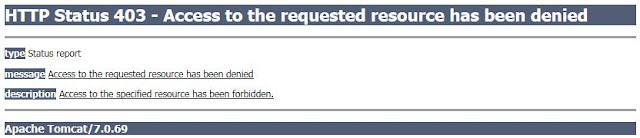


To overcome this issue we need to add entries to the couple of files under the Tomcat Configuration folder.

C:\Program Files\Apache Tomcat 7.0\conf\web.xml


 <security-constraint>   
    <web-resource-collection>   
        <web-resource-name>Protected Admin Area</web-resource-name>   
        <url-pattern>/Admin</url-pattern>   
    </web-resource-collection>
    <auth-constraint>
        <role-name>Admin</role-name>
    </auth-constraint>   
  </security-constraint>  
  <login-config>   
        <auth-method>BASIC</auth-method>
  </login-config>
C:\Program Files\Apache Tomcat 7.0\conf\tomcat-users.xml
<tomcat-users>
<user username="admin" password="admin" roles="manager-gui"/>
<user username="administrator" password="administrator" roles="manager,admin"/>
  <role rolename="manager"/>
  <role rolename="admin"/>
  <role rolename="manager-gui"/>
 <user username="tomcat" password="tomcat" roles="tomcat"/>
 <!-- <user username="both" password="<must-be-changed>" roles="tomcat,role1"/>
  <user username="role1" password="<must-be-changed>" roles="role1"/>
  -->
</tomcat-users>

This should help you resolve this issue.

Command Manager Procedures roundup

Hi All,

Today we are going to see a very handy and programmatic solution oriented tool named MicroStrategy Command Manager(CM). This is one of the coolest features in MicroStrategy where we can script the repetitive tasks and execute in bulk to get the task done!

And it supports scripting of procedures which is nothing but programmatically making the existing scripts to run in a recursive pattern to get the work done...

Let see a very practical example of how to write a Command Manager Procedure to solve a very cumbersome requirement...

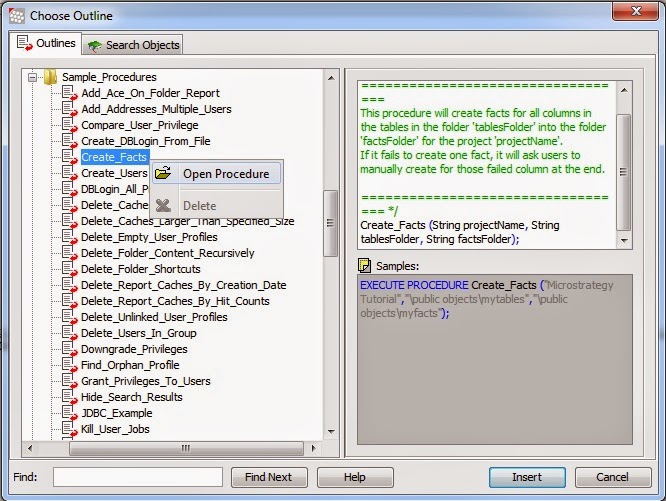
So now how do we write a CM procedure to get to a specific requirement. The answer is always in the in the Sample Procedures that are already available in the CM UI like below...

Navigate to the procedures--> Sample Procedure--> Right click on a procedure.


Sample Procedure....


There are lots of sample procedures available and these procedures can be effectively tuned and reused to suit our requirement.

One of my favorite command manager procedure implementation was when we were doing impact analysis for a database migration for our MicroStrategy projects. And the task was to list out all the expressions of Public Objects and Schema Objects. Basically to find out whether any database specific passthrough functions were used in the definition. Initially we got a project documentation and ended up manually getting the object expressions which was very cumbersome!

Then we came up with a command manager procedures to get the list of the expressions of all the public and schema objects and got them in an excel sheet! which really saved hours of impact analysis!

Below is the script which I developed to list out all the expressions of an attribute...

 Command Manager Procedure...
// property to display  
 DisplayPropertyEnum iProperty = DisplayPropertyEnum.EXPRESSION;  
 // Retrieve all attributes in the project  
 ResultSet oAttributes = executeCapture("LIST ALL ATTRIBUTES FOR PROJECT '" + sProjectName + "';");   
 ResultSet oPropertySet = null;  
 oAttributes.moveFirst();    
 while (!oAttributes.isEof()){  
      String sAttributeName = oAttributes.getFieldValueString(DisplayPropertyEnum.NAME);   
      String sAttributePath = oAttributes.getFieldValueString(DisplayPropertyEnum.PATH);        
      oPropertySet = executeCapture("LIST PROPERTIES FOR ATTRIBUTE '" + sAttributeName + "' IN FOLDER '" + sAttributePath + "' FOR PROJECT '" + sProjectName + "';");  
      oPropertySet.moveFirst();  
      // print out expressions  
      printOut("\n");  
      printOut("Attribute Name : '" + sAttributeName + "'");  
      printOut("Attribute Path : '" + sAttributePath + "'");  
      ResultSet oAttributeForms = (ResultSet)oPropertySet.getFieldValue(DisplayPropertyEnum.ATTRIBUTE_FORM);  
      oAttributeForms.moveFirst();         
      while(!oAttributeForms.isEof()){  
           //get expression list for this attribute  
           ResultSet oExpressions = (ResultSet) oAttributeForms.getFieldValue(DisplayPropertyEnum.ATTRIBUTE_EXPRESSION_LIST);          
           if(oExpressions != null){  
                printOut("--------------------------------------------------");  
                printOut("Attribute Form Name : '" + oAttributeForms.getFieldValueString(DisplayPropertyEnum.ATTRIBUTE_FORM_NAME) + "'");  
                oExpressions.moveFirst();  
                while(!oExpressions.isEof()){  
                     printOut("Expression : " + oExpressions.getFieldValueString(0));  
                     oExpressions.moveNext();  
                }             
           }  
           oAttributeForms.moveNext();  
      }  
      printOut("\n ======END OF ATTRIBUTE DEFINITION=======");  
      oAttributes.moveNext();  
 }  

The challenging part of this procedure is to find out the above highlighted keywords as these keywords are MicroStrategy API defined and unless we use these specific keywords its very hard to get the desired output!

It actually took a while for me to figure out how to get these keywords with ease! The below link actually helps you to get these keywords! The solution is available in the command manager help in your local installation and can be access with the below link... or search for "Project source statement syntax" in your CM web help. Assuming the default installation...

file:///C:/Program%20Files%20(x86)/Common%20Files/MicroStrategy/Help/English/CommandManagerUniversal/cmdmgrhelp.htm#html/statement_syntax_reference_guide.htm

Good Luck!

Wednesday, February 4, 2015

9.5.0: New Feature - Integrity Manager manual report matching for report testing.

Hi All,

Here is one of the coolest features in MicroStrategy 9.5.0 in Integrity Manager(IM). We all know that Integrity Manager is a automated report testing tool provided by MicroStrategy. And with this tool we can compare MicroStrategy reports between projects from one environment to another or withing the same environment.

Basically until 9.4.1 IM had support only to match reports either by report's Object ID or by its Path. So the reports would not be matched until they have the same Object ID or in the same path between the projects.

But now from 9.5.0 onwards there is a new feature to manually match reports between projects. Here is how we can do it... Lets check it out!

First create a report in the source project...


Then create the same report in the other duplicated project in the same project source...


Now lets create an Project Vs Project IM test between these two reports with different object ID and path

Select the source project report


Click on the advanced options to select the manually match option...


Select the target project manually to select the matching report in the target project


Thats it!!! Run the the test to check the results...


If you see the above test results page... The SQL, Data and Graph's match and the Excel and the PDF's does not match. But its just because the report names match!

So this is how we compare the reports between the projects with different report object ID and different path! Really a cool feature isn't it!

Sunday, February 1, 2015

Multi-Tenant MicroStrategy Project Implementation.

Hi All,

Today we are going to discuss about an implementation which I had lived for a few years. Its nothing but setting up Multi-Tenant Architecture in MicroStrategy.

Project Scenario:

Say you are based out of  a product based software services company and you have multiple customers of the same business domain. And you have a dedicated business datawarehouse for each customer and also indeed you have one MicroStrategy project for each customer as well!

And it so happens that there is a customer who keeps asking for lots of requirements... very innovative and so on! However the same kind of requirements aren't even being thought about by other customers.

In such cases your BI Projects aren't been well utilized by your customers or the customers are not well advised on how to use the product that effectively.

Or else few of the customers are asking for the same project functionality as your premier customer has asked for!

In this case you might end up deploying the same project objects for multiple customers since multiple customers use their own MicroStrategy project! Which could be quite cumbersome in administrative effort and project management.

Proposed Solution:

One of the best and easiest proposed solution is to have a single project and make it hit multiple datawarehouses based on the customer's login! Something like if Customer A logs in and runs the reports the reports hit the Customer A's datawarehouse and if Customer B logs in and runs the reports the reports hit the Customer B's datawarehouse and so on...

Implementation Details:

Now what we do now is to have one single project and make the project hit multiple datawarehouse databases based on user's login.

MicroStrategy has a unique feature called Connection mapping where you can easily create a single project and and make it hit multiple datawarehouse databases.

To know more about this you can check out the below technical note from MicroStrategy.

TN20740: What is Connection Mapping and how is it configured in MicroStrategy Desktop 8.x

TN45331: Is there any hard limit on the amount of connection mappings to be implemented in MicroStrategy 9.x?

If you are in need to make a report in a single project to hit multiple database instances then you might need to choose freeform SQL approach.

TN39932: Is it possible to map different reports within the same 9.2.1 project to data warehouses of different types using connection mapping?

Command Manager Scripts Automation for repetitive object tasks

Hi All,

Starting to blog after a very long time and this time it about a real time usage about the Command manager scripting. There are a few project scenario's where it demands you to create the same MicroStrategy public and schema objects multiple times. And this is one such scenarios where command manager scripts automation can be done.

But if you keep writing scripts for each and every object you might end up creating the scripts for month's together. However there is a way to automate this using Microsoft excel and thereby we can create the scripts easily. One such template is what you can download below....

Click downlod MicroStrategy Command Manager automation template

Note: This template is not a finalized tool for all implementations. This is one of the template that I had developed for a generic requirement. However you can download this template and feel free to modify the scripts and the flow as per your project needs!

Sunday, November 18, 2012

Getting started with MicroStrategy...

Hi Guys,


If you are new to MicroStrategy... here is how you can get started. Fist of all you must have the MicroStrategy software installed in your machine. To do so you must get the MicroStrategy software.

First step would be to register in the resource site with your corporate account to get full advantage of MicroStrategy and all its services. You can do so by registering it in the below link.

http://community.microstrategy.com/

Then you need to download the software. There are different version of software but the thing is that you would not get a full package version for free. There are two flavors of MicroStrategy tool where one is totally free but you can use only the reporting module without the administration tools.

Unfortunately from 9.4.1 onwards MicroStrategy provides only a evaluation version for one month as a trial.

To get the full package evaluation version fully operational for 30 days you can follow the below link. The current version of the MicroStrategy Release is 9.5.0s

http://www.microstrategy.com/us/free/developers

You can download and install the software in your machine. Installation steps are quite straight forward as simple as any windows installable.

Sunday, January 29, 2012

Excellent Link to learn MicroStrategy Command Manager...

MicroStrategy Command Manager is an application that automates MicroStrategy administrative tasks, improving TCO by allowing you to reduce workload and increase efficiency.
MicroStrategy Command Manager provides a fast and easy way to perform necessary and repetitive tasks on the MicroStrategy platform. Deployable on Windows®, UNIX®, and Linux® the MicroStrategy Command Manager development console provides an interface rich in functionality and intuitive to use script language. Automated scripts require the least possible amount of human attention, helping you optimize employee time and reduce costs. Scripts can be scheduled to run at specific times, even triggered by third party software to increase the value of all products. Common tasks can be combined into a single procedure, which can affect multiple users and objects, eliminating unnecessary work. Below link provides a good documentation for MicroStrategy Command Manager.

Click here to check the Command Manager Scripts documentation