Hi All,
Today we are going to see a way to install MicroStrategy Web without IIS as a web server. IIS has some limitations if you are in one of the operating systems of windows mentioned below...
Microsoft Windows 7 Home Premium
Microsoft Windows 7 Home Basic
Microsoft Windows 7 Home Starter
Microsoft Windows Vista Home Premium
Microsoft Windows Vista Home Basic
Its basically a known product limitation as mentioned in the below link
https://technet.microsoft.com/en-ca/library/cc753473.aspx
However if you cannot upgrade to the higher versions of Windows. Here is one simple way to configure MicroStrategy Web with an opensource webserver named Apache Tomcat!
Here is how we can do it!
Download Apache 7.0 from the below link
Download JDK from the below link
Install both the software applications
in the machine with the default machine installation.
To configure the JDK
·
From the Start menu, select
Computer. The Computer dialog box opens.
·
Click System properties. The
System dialog box opens.
·
Click Advanced system settings.
The System Properties dialog box opens.
·
Click Environment Variables. The Environment
Variables dialog box opens.
·
Under System Variables, click
New to create a system variable. The New System Variable dialog box opens.
In the Variable Name field, type
JAVA_HOME.
In the Variable Value field, type the
path of the folder where you installed the JDK and click OK.
For example, if the fully qualified path
to your JDK executable is C:\jdk1.6.0\bin\java.exe, the value of your JAVA_HOME
variable is C:\jdk1.6.0.
If you have installed JDK
under the Program Files folder, type Progra~1 when specifying the folder name
in the Variable Value box
Assuming if you have installed JDK and its available in this location...
Paths to be set when a default installation of JDK is made.
PATH
----
C:\Program Files\Java\jdk1.6.0_19\bin;.;
CLASSPATH
---------
C:\Program Files\Java\jdk1.6.0_19\lib;.;
JAVA_HOME
---------
C:\Program Files\Java\jdk1.6.0_19
To configure Tomcat
·
From the Start menu, select
Computer. The Computer dialog box opens.
·
Click System properties. The
System dialog box opens.
·
Click Advanced system settings.
The System Properties dialog box opens.
·
Click Environment Variables.
The Environment Variables dialog box opens.
·
Under System Variables, click
New to create a system variable. The New System Variable dialog box opens.
·
In the Variable Name field,
type CATALINA_HOME
·
In the Variable Value field,
specify the path of the folder where you installed Tomcat and click OK.
For example, if you installed Tomcat directly
to the C drive, the destination folder is C:\Tomcat.
Assuming if you have installed JDK and its available in this location...
Your CATALINA_HOME should be set to :
C:\Program Files (x86)\Apache Software Foundation\Tomcat_7.0
Locating the WAR file
·
The
MicroStrategy Web Universal WAR file (MicroStrategy.war) is located in the path you specified when installing MicroStrategy
Web Universal.
·
The
default location when installing on 32-bit Windows environments is C:\Program Files\MicroStrategy\WebJSP.
·
The
default location when installing on 64-bit Windows environments is C:\Program Files
(x86)\MicroStrategy\WebJSP.
Deploying using Tomcat as a stand-alone Web container
·
To deploy MicroStrategy Web
Universal or Mobile Server (JSP) using Tomcat as a stand-alone Web container
·
Copy the MicroStrategy.war file
to the Tomcat\webapps folder.
To control access to the MicroStrategy Web Administrator and Mobile
Server Administrator pages
·
In
the Tomcat\conf folder, open the tomcat-users.xml file in a program that allows
you to edit the file, such as Notepad.
·
Add
the following tag and save the file:
<user name=”administrator” password=”administrator”
roles=”admin”/>
Now stop and start the web server. That’s it you are done.
To configure MSTR Web Admin
To access MicroStrategy projects in
Web.
Upon Successful configuration you should be able to see the version of the MicroStrategy web like below!

.
Issues faced and resolution with MicroStrategy 10.3
Once the war file is deployed and while logging into the MicroStrategy web admin console I got the below error http://localhost:8080/MicroStrategy/servlet/mstrWebAdmin
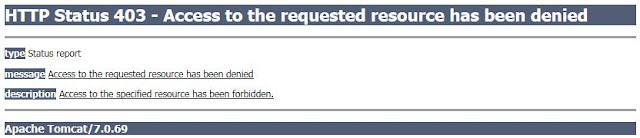
To overcome this issue we need to add entries to the couple of files under the Tomcat Configuration folder.
C:\Program Files\Apache Tomcat 7.0\conf\web.xml
 <security-constraint>
    <web-resource-collection>
        <web-resource-name>Protected Admin Area</web-resource-name>
        <url-pattern>/Admin</url-pattern>
    </web-resource-collection>
    <auth-constraint>
        <role-name>Admin</role-name>
    </auth-constraint>
  </security-constraint>
  <login-config>
        <auth-method>BASIC</auth-method>
  </login-config>
C:\Program Files\Apache Tomcat 7.0\conf\tomcat-users.xml
<tomcat-users>
<user username="admin" password="admin" roles="manager-gui"/>
<user username="administrator" password="administrator" roles="manager,admin"/>
  <role rolename="manager"/>
  <role rolename="admin"/>
  <role rolename="manager-gui"/>
 <user username="tomcat" password="tomcat" roles="tomcat"/>
 <!-- <user username="both" password="<must-be-changed>" roles="tomcat,role1"/>
  <user username="role1" password="<must-be-changed>" roles="role1"/>
  -->
</tomcat-users>
This should help you resolve this issue.


